Skip to content
WebHostsOnline Web-Solutions
  • Home
  • Domains
    • Domains
    • Transfer Your Domain
    • Order SSL Certificates
  • Cloud Hosting
    • AWS Hosting
    • Cloud i Hosting from WebHostsOnline
    • Google Cloud Servers
    • Magento Hosting
    • WooCommerce Hosting
    • Timeline Backups
  • Hosting
    • Shared Hosting
    • Website Builder
    • Website Design & Hosting
  • Email Hosting
  • WordPress
    • Free Hosting
    • WooCommerce Hosting
    • WordPress Hosting
  • VPS Hosting
  • Tools
    • SSL Certificates
    • Timeline Backup-Pro
    • Website Turbo
  • My Account
Contact Us
alt
WebHostsOnline Web-Solutions
  • hello@webhostsonline.co.uk
back to top

What is the Website Acceleration Suite?

  • WebHostsOnline Web-Solutions
  • /knowledge-base
  • Web Hosting
  • What is the Website Acceleration Suite?

My Account

3
  • How do I register a new domain with WebHostsOnline?
  • Which nameservers should I use with WebHostsOnline hosting?
  • Where can I update my account / profile details?

Cloud Servers

10
  • How do I add another server/include to an SPF record?
  • Managed Cloud Server: Manage Your Cloud Server
  • Managed Cloud Server: Registering Domain Names
  • How can I clone a site with Timeline Backups?
  • How do I restore a site using Timeline Backups?
  • How do I set up Automatic Timeline Backups?
  • Does your hosting support Django?
  • Does your Windows hosting support .NET Core?
  • How do I activate my free SSL?

Domains

10
  • How can I create a subdomain?
  • Managed Cloud Server: Registering Domain Names
  • Domain transfer statuses explained?
  • What are WebHostsOnline nameservers?
  • How to transfer your domain from 123-reg WebHostsOnline
  • How to transfer your domain from Ionos to WebHostsOnline
  • How to transfer your domain from GoDaddy to WebHostsOnline
  • How to transfer your domain from Easyspace to WebHostsOnline
  • My domain is locked with my current provider, what can I do?
  • How do I transfer my domain to you?

Email Hosting

13
  • How to create an autoresponder?
  • How do I add Office 365 DNS records?
  • Why are the IMAP folders missing from my iPhone or iPad?
  • What are the recommended Thunderbird Mail client settings?
  • How do I add another server/include to an SPF record?
  • WordPress: use SMTP with and without plugins
  • What are the Free Tools with WordPress Hosting?
  • How do I use the free WebHostsOnline Website Malware Scanner? 
  • What are my email sending limits?
  • How do I set up email on my iPhone?
  • How do I set up my WebHostsOnline mailbox in Outlook?
  • How do I create a mailbox?
  • How to use the email migration tool

FTP

2
  • How to connect Web Hosting via FTP?
  • I can’t connect via FTP, what can I do?

Web Hosting

18
  • How can I clone a site with Timeline Backups?
  • How do I restore a site using Timeline Backups?
  • How do I set up Automatic Timeline Backups?
  • Does your hosting support Django?
  • WordPress caching: what you need to know
  • Do I need caching plugins in addition to the WebHostsOnline CDN?
  • Why am I getting a cache status ‘MISS’?
  • How do I use WebHostsOnline’s CDN?
  • How do I create a Website Acceleration Suite template?
  • Improve your WordPress website’s TTFB
  • What is the Website Acceleration Suite?
  • Why could my WordPress migration fail?
  • Do you support WordPress multisite?
  • How do I activate my free SSL?
  • How do I run a search and replace in the WordPress CLI?
  • How do I create a MySQL database in MyWebHostsOnline
  • How do I change PHP version?
  • How to modify your hosts file for Windows, macOS and Linux.

WordPress

21
  • I installed WordPress on the temporary URL, how can I change it to my domain name?
  • WordPress Multisite Setup Guide
  • How can I clone a site with Timeline Backups?
  • How do I restore a site using Timeline Backups?
  • How do I set up Automatic Timeline Backups?
  • Why do I get an Internal Server Error 500 and how to fix it?
  • WordPress: use SMTP with and without plugins
  • WordPress caching: what you need to know
  • Do I need caching plugins in addition to the WebHostsOnline CDN?
  • Why am I getting a cache status ‘MISS’?
  • How do I use WebHostsOnline’s CDN?
  • How do I create a Website Acceleration Suite template?
  • Improve your WordPress website’s TTFB
  • What is the Website Acceleration Suite?
  • Why could my WordPress migration fail?
  • Do you support WordPress multisite?
  • How do I activate my free SSL?
  • How do I run a search and replace in the WordPress CLI?
  • Is it safe to update the PHP version on my website?
  • How do I migrate a website manually?
  • WooCommerce
    • WordPress Multisite Setup Guide

Migrations

3
  • Why could my WordPress migration fail?
  • How do I migrate a website manually?
  • How to modify your hosts file for Windows, macOS and Linux.

SSL Certificates

2
  • How do I activate my free SSL?
  • Can I use the free SSL if my site doesn’t use the WebHostsOnline nameservers?

Security

3
  • What are the Free Tools with WordPress Hosting?
  • How do I use the free WebHostsOnline Website Malware Scanner? 
  • Protecting your password from brute-force attacks

DataBase

13
  • How to connect Web Hosting via FTP?
  • MS-SQL
    • How do I import a .sql file via the command-line?
    • How do I manage my Microsoft SQL database?
    • What is MS-SQL?
  • MySQL
    • How do I export a .sql file via the command-line
    • How do I download or back up my MySQL Database?
    • How do I import a .sql file via the command-line?
    • Can I view my FTP, email address, or database passwords?
    • How do I create a MySQL database?
    • What’s the maximum MySQL database size allowed?
    • Can I set my database hostname as ‘localhost’?
    • How do I import a .sql file via phpMyAdmin?
    • What is MariaDB?

VPS

14
  • How do I connect to my Windows virtual machine via Remote Desktop?
  • How set up Mastodon on a Self-Managed VPS
  • How do I connect to an Unmanaged VPS using SSH?
  • How do I install and enable Apache and PHP modules on my cPanel VPS?
  • Does your hosting support Django?
  • How do I raise an additional IP address on my CentOS virtual machine?
  • How do I add an additional IP address to my virtual machine?
  • What version of Windows do you run on the Windows servers?
  • Does your Windows hosting support .NET Core?
  • How do I connect to my Windows virtual machine via Remote Desktop?
  • Windows
    • How do I connect to my Windows virtual machine via Remote Desktop?
    • Managing the Windows Application Pool
    • What version of Windows do you run on the Windows servers?
    • Does your Windows hosting support .NET Core?

Backups

3
  • How can I clone a site with Timeline Backups?
  • How do I set up Automatic Timeline Backups?
  • How do I restore a site using Timeline Backups?

SSH

8
  • Can I use sudo on shared hosting?
  • What is the PHP memory_limit?
  • How do I connect via SSH using 2FA?
  • How do I connect via SSH?
  • How do I import a .sql file via the command-line?
  • How do I connect via SSH on an Apple Mac?
  • How do I connect via SSH on an Apple Mac?
  • How do I run Composer via SSH?
View Categories
  • Home
  • /knowledge-base
  • Web Hosting
  • What is the Website Acceleration Suite?

What is the Website Acceleration Suite?

6 min read

AI Doc Summarizer Doc Summary
AI Doc Summarizer Thinking Thinking

Our CDN powers-up your websites further by feeding them through our Website Acceleration Suite. 

It’s included for no extra charge with our Web Hosting, WordPress Hosting, packages.

The module improves website load times by automatically implementing web performance best practices to a website. This includes optimising images, JavaScript minification and combining CSS – all to improve website load times and the Google PageSpeed Score. This in turn positively impacts SEO and helps you develop high-performing websites at scale. 

To access Web Optimisation, head to Manage Hosting -> Manage -> Web Optimisation

image.png

For a full list of the optimisations head to the Web Optimisation section within the package to be optimised. You’ll be able to select the One Click Optimisation option to add the recommended settings.
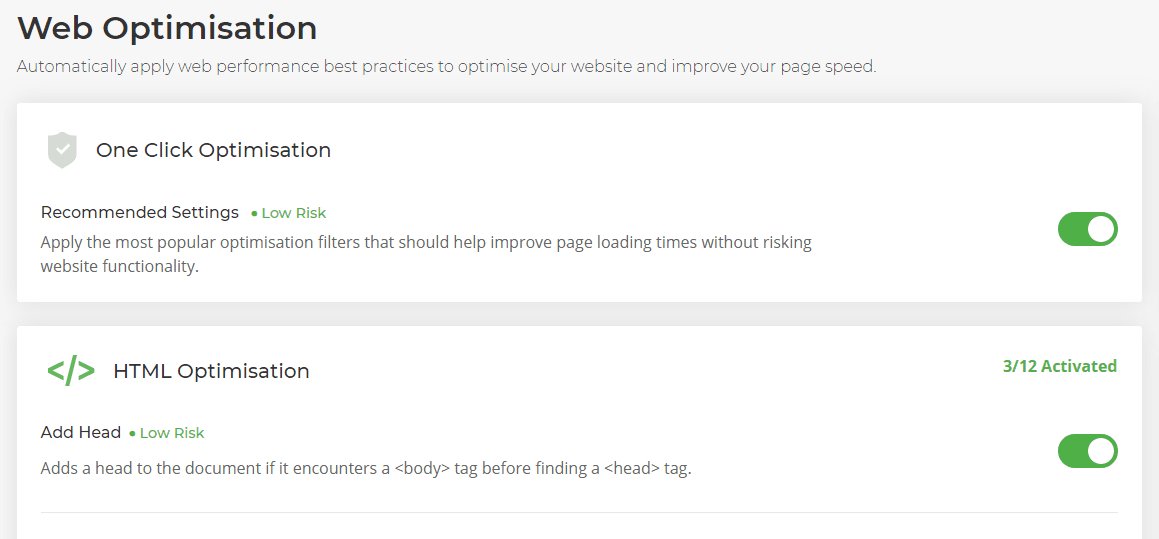
Web optimisation

If you have created a set of unique optimisations, you can save that as a template to apply to other sites. Please see: How do I create a Web Acceleration Suite template?  

Understanding the Website Acceleration Suite #

Each optimisation is referred to as a filter as is designed to directly complement the recommends/audits Google PageSpeed Insights performs on your websites. 

It avoids the need to manually carry out the recommended optimisations, helping your websites get the highest PageSpeed score possible. 

How our Website Acceleration Suite supercharges your websites #

Our Website Acceleration Suite slims-down the data payload of your site, without affecting its appearance or function.

Optimisations are done at the server level, this means you don’t need multiple plugins to optimise your sites. Reducing the number of plugins itself will improve the performance of PHP and result in faster load times!

  • Automatic image resizing: Slow-loading images are the bane of website performance. Our image CDN will scan your images and resize them for the appropriate size for mobile and desktop.
  • Image compression: ‘Raw’ images often contain information that can be removed or compressed without a visible loss in quality. The 20iCDN will compress your images ‘on the fly’, saving you time.
  • Next-Gen image formats: Our image optimisation tools will convert files to fast-loading next-gen image formats like JPEG 2000, JPEG XR, and WebP.
  • Code minification: We can minify and strip whitespace from our code. Our CDN will compress HTML, CSS and JavaScript files to reduce time spent parsing, compiling and executing it. Network payload is reduced, so sites load faster.
  • Lazy loading: Only load what’s going to be presented to the user immediately: what’s going to be seen first. Your above-the-fold content will appear in a browser more quickly by deferring off-screen images or other non-critical resources.

Here’s a full list of the optimisation filters to accelerate your websites:

HTML Optimisation #

Add Head #

Adds a head to the document if it encounters a tag before finding atag.

Collapse Whitespace #

Reduces the transfer size of HTML files by replacing contiguous whitespace with a single whitespace character.

Combine Heads #

Attempts to combine multiple tags into one.

Convert Meta Tags #

Adds a response header that matches each meta tag with an http-equiv attribute.

Elide Attributes #

Reduces the transfer size of HTML files by removing attributes from tags when the specified value is equal to the default value for that attribute.

Extend Cache PDFs #

A version of Extend Cache that acts on PDFs. Unlike ‘Extend Cache’ it applies not only to resources but also to hyperlinks.

Extend Cache #

Seeks to improve the cacheability of a web page’s resources without compromising the ability of site owners to change the resources and have those changes propagate to users’ browsers.

Hint Resource Preloading #

Uses resource preloading HTTP headers to inform browsers of CSS and JavaScript resources early in page processing, to permit them to fetch them earlier than would otherwise be possible.

Pre-Resolve DNS #

Provides hints to the browser at the beginning of the HTML, which allows the browser to pre-resolve DNS for resources on the page.

Remove Comments #

Eliminates HTML comments, which are often used to document the code or to comment out experiments.

Remove Quotes #

Eliminates unnecessary quotation marks from HTML attributes.

Trim Urls #

Trims URLs by resolving them by making them relative to the base URL for the page.

JavaScript Optimisation #

Canonicalize JavaScript Libraries #

Identifies popular JavaScript libraries that can be replaced with ones hosted for free by a JS library hosting service (the default is Google Hosted Libraries).

Combine JavaScript #

Seeks to reduce the number of HTTP requests made by a browser during page refresh by replacing multiple distinct JavaScript files with a single one.

Defer JavaScript #

Defer Javascript until after the page loads to avoid render blocking

Include JavaScript Source Maps #

Source maps are files that tell browsers how to map between a minified JavaScript file and the original, readable version so that you can see the readable version while debugging minified production code.

Inline JavaScript #

Reduces the number of requests made by a web page by inserting the contents of small external JavaScript resources directly into the HTML document. This can reduce the time it takes to display content to the user, especially in older browsers.

Move CSS Above Scripts #

Seeks to make sure scripts do not block the loading of CSS resources.

Minify JavaScript #

Rewrites JavaScript files to remove excess whitespace and comments. In OptimizeForBandwidth mode, the minification occurs in-place without changing URLs.

CSS Optimisation #

Combine CSS #

Seeks to reduce the number of HTTP requests made by a browser during page refresh by replacing multiple distinct CSS files with a single CSS file.

Fallback Rewrite CSS URLs #

Parses linked and inline CSS, rewrites the images found and minifies the CSS.

Flatten CSS Imports #

Reduces the number of HTTP round-trips by combining multiple CSS resources into one.

Inline CSS #

Reduces the number of requests made by a web page by inserting the contents of small external CSS resources directly into the HTML document. This can reduce the time it takes to display content to the user, especially in older browsers.

Move CSS To <head> #

Seeks to reduce the number of times the browser must re-flow the document by ensuring that the CSS styles are all parsed in the head, before any body elements are introduced.

Prioritize Critical CSS #

Improves page render times by identifying CSS rules needed to render the page, inlining those critical rules and deferring the load of the full CSS resources.

Rewrite CSS #

Parses linked and inline CSS, rewrites the images found and minifies the CSS.

Rewrite Style Attributes With URLs #

Rewrite CSS inline style attributes that contain URLs, for example background-images can be targetted using this filter.

Image Optimisation #

Convert to WEBP Animated #

Converts animated images to WEBP animated images.

Convert to WEBP lossless #

Converts any images to WEBP lossless.

Deduplicate Inlined Images #

Reduce the transfer size of HTML files by eliminating redundant image data URLs.

Inline Images #

Replaces references to small images by converting them to inline data: URLs, eliminating the need to initiate new connections for fetching the image data.

Inline Preview Images #

Generates low quality versions of the images that are inlined in the HTML page. Users experience faster rendering of the page and the low quality images are replaced by high quality versions after an onload event is triggered.

Insert Image Dimensions #

Adds width= and height= attributes to the tags if they are missing. Values for the width= and height= attributes are computed from the image.

Lazyload Images #

Optimize browser rendering and reduce number of HTTP round-trips by deferring the loading of images which are not in the client’s viewport.

Recompress Images #

Recompresses images, removing excess metadata and transforming gifs into pngs.

Resize Images #

Shrinks the dimensions of an image to the width= or height= attribute specified in the tag or in the inline style= attribute.

Resize Mobile Images #

Generates low quality versions of the images that are inlined in the HTML page.

Resize Rendered Image Dimensions #

Shrinks images to their rendered dimensions on the web page. Unlike resize_images, it ignores any width and height attributes specified for the images.

Responsive Images #

Makes images responsive by adding srcset attributes which provide multiple versions for different pixel density screens.

Optimize Images #

Performs common image optimizations, including recompression, transcoding to optimal formats, reduction of image dimensions, and inlining of small images into HTML or CSS.

Sprite Images #

Detects GIF and PNG images used as backgrounds in CSS, and combines all such images referenced from a CSS file into a single large image. The individual CSS backgrounds are then rewritten to point to the single large image.

Updated on September 24, 2025

What are your Feelings

  • Happy
  • Normal
  • Sad

Share This Article :

  • Facebook
  • X
  • LinkedIn
  • Pinterest
Improve your WordPress website’s TTFBWhy could my WordPress migration fail?

Powered by BetterDocs

Leave a Comment Cancel reply

Table of Contents
  • Understanding the Website Acceleration Suite
  • How our Website Acceleration Suite supercharges your websites
  • HTML Optimisation
    • Add Head
    • Collapse Whitespace
    • Combine Heads
    • Convert Meta Tags
    • Elide Attributes
    • Extend Cache PDFs
    • Extend Cache
    • Hint Resource Preloading
    • Pre-Resolve DNS
    • Remove Comments
    • Remove Quotes
    • Trim Urls
  • JavaScript Optimisation
    • Canonicalize JavaScript Libraries
    • Combine JavaScript
    • Defer JavaScript
    • Include JavaScript Source Maps
    • Inline JavaScript
    • Move CSS Above Scripts
    • Minify JavaScript
  • CSS Optimisation
    • Combine CSS
    • Fallback Rewrite CSS URLs
    • Flatten CSS Imports
    • Inline CSS
    • Move CSS To
    • Prioritize Critical CSS
    • Rewrite CSS
    • Rewrite Style Attributes With URLs
  • Image Optimisation
    • Convert to WEBP Animated
    • Convert to WEBP lossless
    • Deduplicate Inlined Images
    • Inline Images
    • Inline Preview Images
    • Insert Image Dimensions
    • Lazyload Images
    • Recompress Images
    • Resize Images
    • Resize Mobile Images
    • Resize Rendered Image Dimensions
    • Responsive Images
    • Optimize Images
    • Sprite Images
WebHostsOnline Web-Solutions

Contact

  • Church Yard,
    Ashford Kent.
    TN23 1QG
  • hello@webhostsonline.co.uk

Links

  • Cloud Hosting
  • Joomla Hosting
  • Laravel Hosting
  • .Net Core Hosting
  • NodeJS Hosting
  • PHP Hosting
  • VPS Hosting
  • My WebHostsOnline Demo
  • WebMail

Support

  • Contact Us
  • Knowledge Base
  • System Status

Company

  • About
  • Blog
  • Cookie Policy
  • Disclaimer
  • Imprint
  • Privacy Statement
  • Terms and Conditions
  • Website Design Service Terms and Conditions of Service

All rights reserved © WebHostsOnline Web-Solutions. | Part of the GMCi Group
Registration No. 17215955, Registered in England and Wales.

Manage Consent
To provide the best experiences, we use technologies like cookies to store and/or access device information. Consenting to these technologies will allow us to process data such as browsing behaviour or unique IDs on this site. Not consenting or withdrawing consent, may adversely affect certain features and functions.
Functional Always active
The technical storage or access is strictly necessary for the legitimate purpose of enabling the use of a specific service explicitly requested by the subscriber or user, or for the sole purpose of carrying out the transmission of a communication over an electronic communications network.
Preferences
The technical storage or access is necessary for the legitimate purpose of storing preferences that are not requested by the subscriber or user.
Statistics
The technical storage or access that is used exclusively for statistical purposes. The technical storage or access that is used exclusively for anonymous statistical purposes. Without a subpoena, voluntary compliance on the part of your Internet Service Provider, or additional records from a third party, information stored or retrieved for this purpose alone cannot usually be used to identify you.
Marketing
The technical storage or access is required to create user profiles to send advertising, or to track the user on a website or across several websites for similar marketing purposes.
Manage options Manage services Manage {vendor_count} vendors Read more about these purposes
View preferences
{title} {title} {title}